
If your website doesn't have MLS® Reciprocity, or you simply want to add a new listing, you just need to do the following.
This is useful when old sold listings that are no longer on MLS® Reciprocity need to be added to your website.

2. Click on "Add New Listing".

3. On the pop-up window, click "Add Manually".

4. Add all relevant information.
The image below shows you the information that you have to complete. For example, on the Basic Info tab:
- Click on the Sale Status dropdown to choose the correct status (Active, Sold/Rented, or Show on Both.
- The For Rent option is only available if you have a Rental Module subscription.
- In the text box, add listing description. There is no word limit, so add as much as you want!

To add the correct address and lat/long data, follow the steps below.
- Fill in the address input fields. (Street Number, City, ect)
- Click on the Find Address button, which will place the pin on the address.
- You can drag the map around to make the pin more precise.

5. Move on the rest of the tabs (Details, Dimensions, SEO)

6. Add your listing.
When you complete all the information about your listing, click the Add Listing button. After the listing is added, you can upload attachments for the listing, like photos and floor plans.

7. Add Photos and Floor Plans.
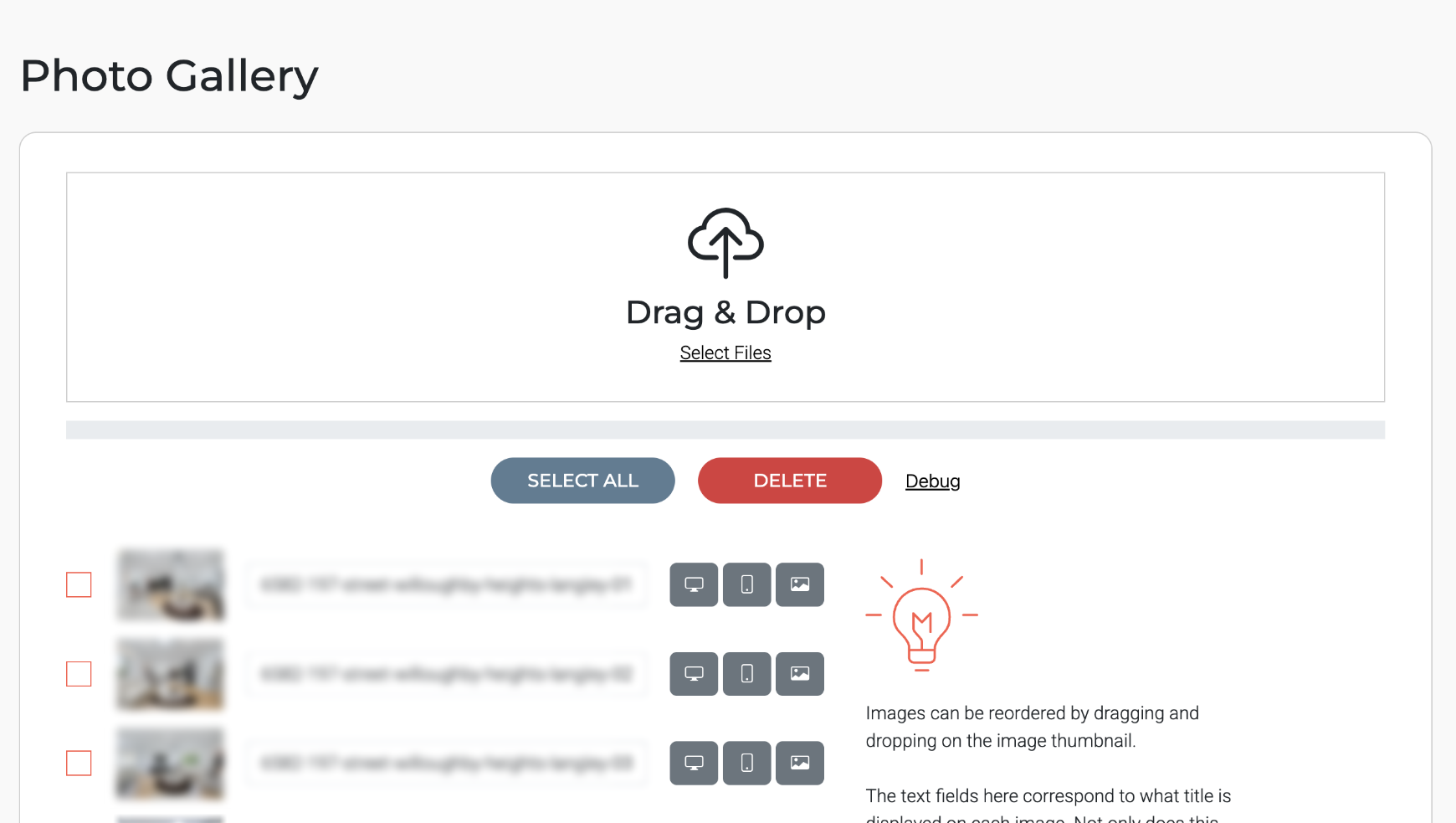
After adding your listing, the Photos tab will become available. Open this tab, scroll down to the Photo Gallery section and upload all your photos. Yes, all of them!
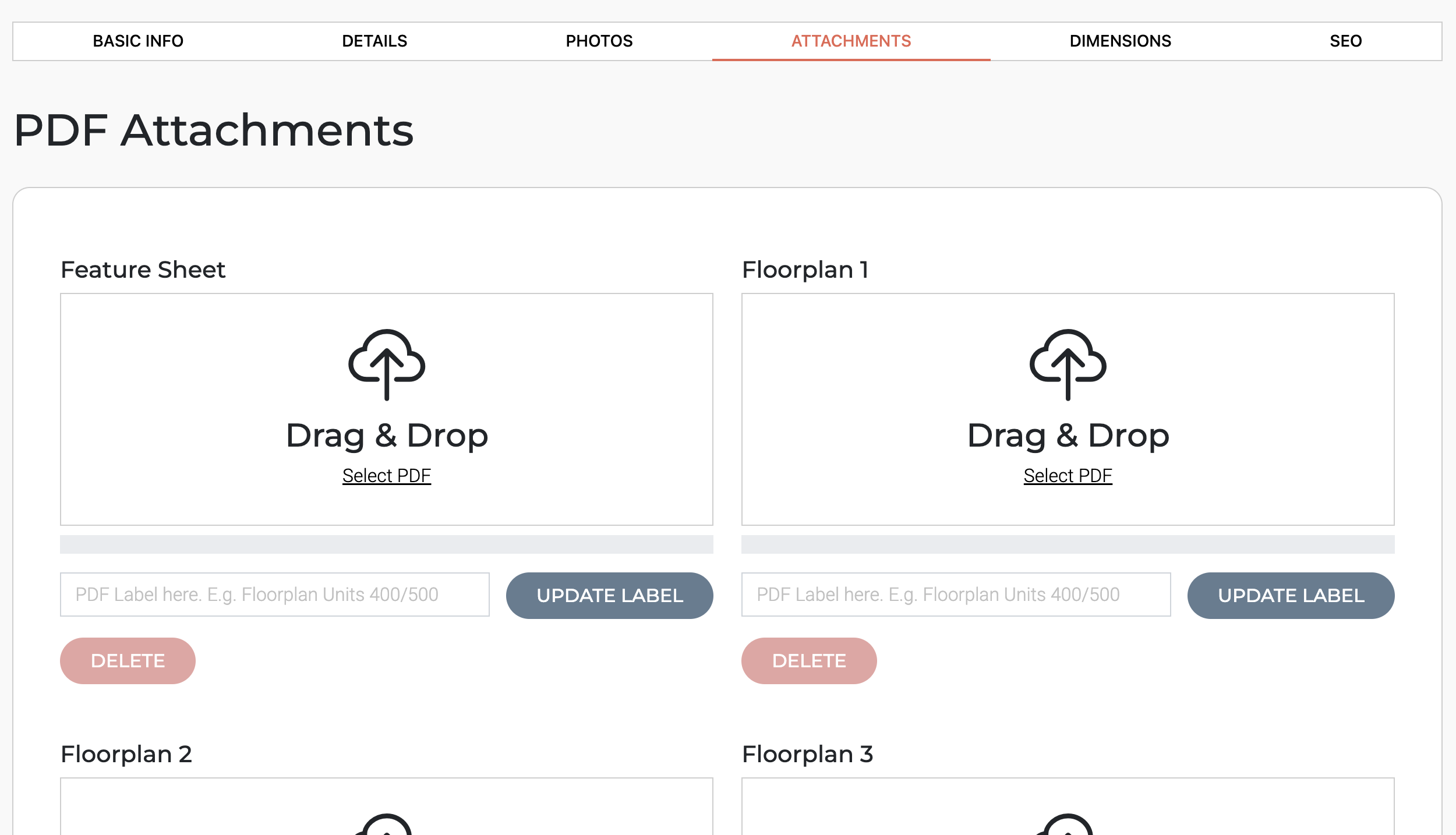
Also, the Attachments tab will become available. Upload files as needed.
After making any changes, make sure to save them by clicking the Save Listing button at the bottom of the screen!